iPhone: How to add custom ringtones in 23 steps
Custom ringtones are one of the biggest requests by people that want to modify their iPhone to make it unique. This page will teach you how to add your own files to the iPhone to use as a ringtone. For those of you PPC Mac users out there, for whatever reason the universal binary of jailbreak does not work.
Warning
* We felt we had to say something before you performed this modification. There is obviously some risk involved here, but everyone we know of has been able to restore their iPhone by using iTunes. I’ve heard no report of anyone damaging their iPhone by doing this. However, if your iPhone becomes unresponsive to restoration via iTunes, then you may have to seek repair or replacement through Apple Inc., or AT&T. Pay careful attention to the instructions here. We are NOT responsible for your results. You are assuming all risks. These instructions were completed successfully by many people before being posted here, but we cannot account for everyone’s individual computer system configurations or ability to follow directions.
* It is unknown what, if any, effect future updates to iTunes or iPhone software and firmware will have on the modifications we are able to do.
[iPhone Buzz] This is the best “how to” add custom ringtones - hands down!
Step 1. Make sure your iPhone is docked and charged.
Step 2. From iTunes, make sure you have a backup of your phone and all settings (if you want to keep them). Simply connect the iPhone to your computer and iTunes will sync your iPhone. Automatically backed-up information includes text messages, notes, call history, contact favorites, sound settings, widget settings, certain network settings, and other preferences.
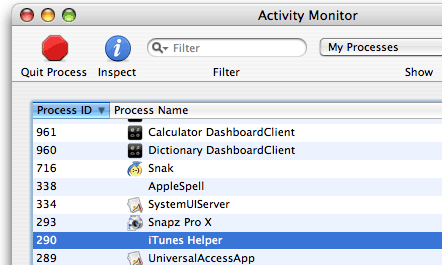
Step 3. Quit iTunes. Don’t just minimize it, shut it down. If you have the iTunes Helper open, you must quit that as well. To determine if the iTunes Helper is running open the Activity Monitor program found in the Utilities folder inside of the Applications folder. If it is running, highlight it in the list and click the Quit Process button.
Step 4. Make sure the iPhone is on.
Step 5. Download the software restore file from Apple. Click here. Once the file is downloaded, most browsers may automatically decompress the file and leave a folder called iPhone1,1_1 on your desktop. If your browser did not do this, and you have a .ipsw file instead, then rename the extension to .zip and decompress it yourself.
Step 6. Create a folder called phonedmg in your home folder.
Step 7. Place the software restore files you downloaded from Apple (the iPhone1,1_1 folder) into the phonedmg folder. Do not place the whole folder in here, just what’s in the folder.
Step 8. Download the “jailbreak” program here you can also get it here. Put these files into the phonedmg folder.
Step 9. Download the iPhoneInterface (v 0.3.3) program here you can also get it here. Put these files into the phonedmg folder.
Step 10. Go to your Applications folder and then go into the Utilities folder and find the program called Terminal. You should move this to your dock for easier access. Note that when typing in the terminal, everything is case sensitive. So watch your capital letters and lower case letters. Do not interchange them, they won’t work.
[iPhone Buzz] If you’ve read this much…we suggest you head on over to Hack the iPhone to get the full details.
Still using Windows with the iPhone? Click for details ringtones for Windows.